
 Čeština
  Dansk
Dansk  Deutsch
  English
  English (US)
  Español
  Français
  Italiano
  Magyar
  Nederlands
  Norsk
Norsk  Polski
  Português
  Português (BR)
  Română
  Suomi
Suomi  Svenska
  Tiếng Việt
  Türkçe
  Ελληνικά
  Български
  Русский
  Українська
  ไทย
ไทย  日本語
日本語  한국어
한국어 
Why the Recycle Bin
is not enough to
securely delete your data
Deleted is not gone: what really happens when you empty the
Recycle Bin and how to remove files so that they cannot be recovered.
Why you should securely delete data and how Steganos Shredder helps you to do so
Moving files to the recycle bin and deleting them via the normal Windows method does not actually remove them from your physical disk. Only the references to where the data is located on the disk are removed. With appropriate software, it is easily possible to recover files deleted in this way, as long as they have not yet been overwritten.
It is therefore recommended to securely delete sensitive files and especially those that you copy to Steganos Data Safe when they are no longer needed. After all, the best encryption is of no use if the original data can still be read from the unencrypted area of your drives using relatively simple methods.
Below we explain how you can use Shredder to safely remove data from your drives. Steganos Shredder overwrites the deleted files with random data so that they cannot be easily recovered.
Securely delete files and folders with Steganos Shredder
-
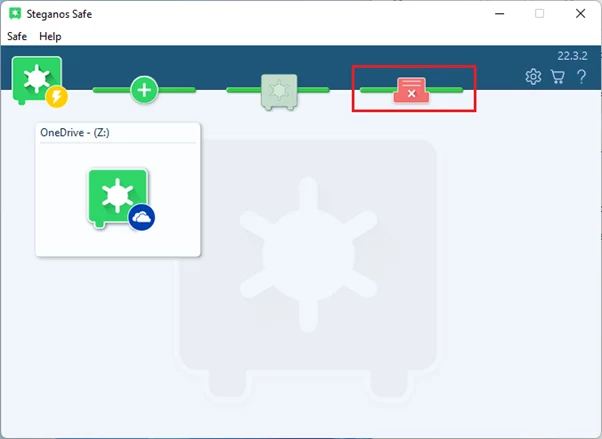
First, open Steganos Data Safe and click on the Shredder icon.
-
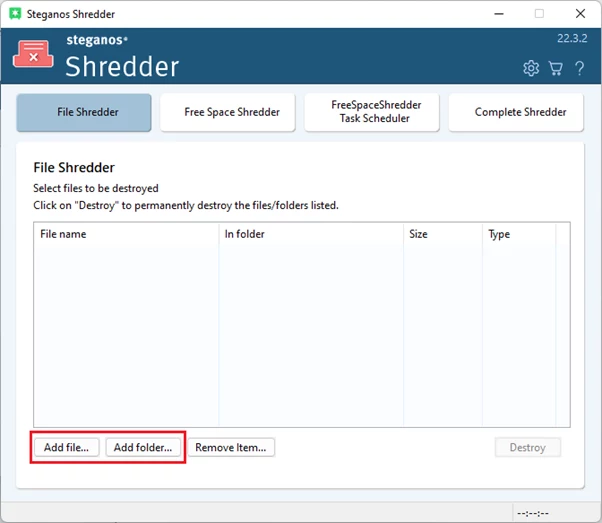
Then click "Add File" or "Add Folder" and select the files or folders you want to permanently delete. You can also simply drag and drop the files/folders into the Shredder window.
-
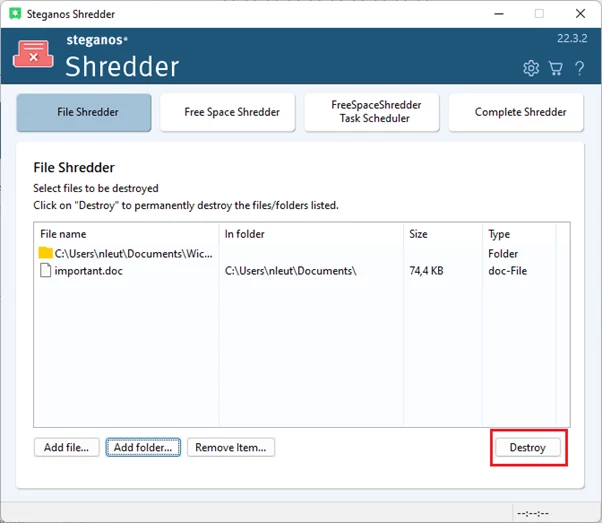
Once you have selected all the files you want to delete, click on "Destroy" and then on "OK". Before you delete files with the shredder, you should of course make absolutely sure that you no longer need them!
-
Afterwards, the files will be securely deleted and overwritten and cannot be easily recovered now.
Securely delete files that have already been deleted in the normal way with the Free Space Shredder
The Free Space Shredder is used when you have already deleted files via the normal way, but now also want to make sure that they cannot be recovered.
-
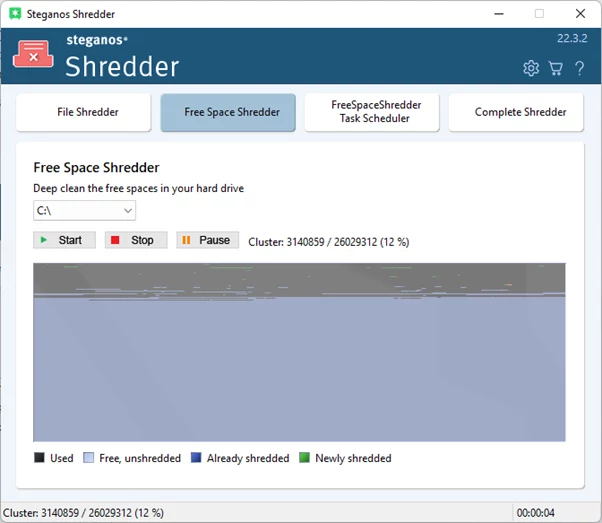
To use it, simply click on "Free Space Shredder" in the main overview of Steganos Shredder. The program will request administrator rights, please confirm them.
-
You will then see the main overview of the Free Space Shredder. Here, simply select the drive whose empty space is to be safely overwritten and click "Start". The process may take some time, depending on how much free space needs to be overwritten.
-
Once this process is complete, even files that you did not securely delete directly with the shredder can no longer be recovered.
Here you can learn more about Steganos Privacy Suite and Steganos Data Safe and how they protect your privacy. Both products have the described Steganos Data Shredder as a component.
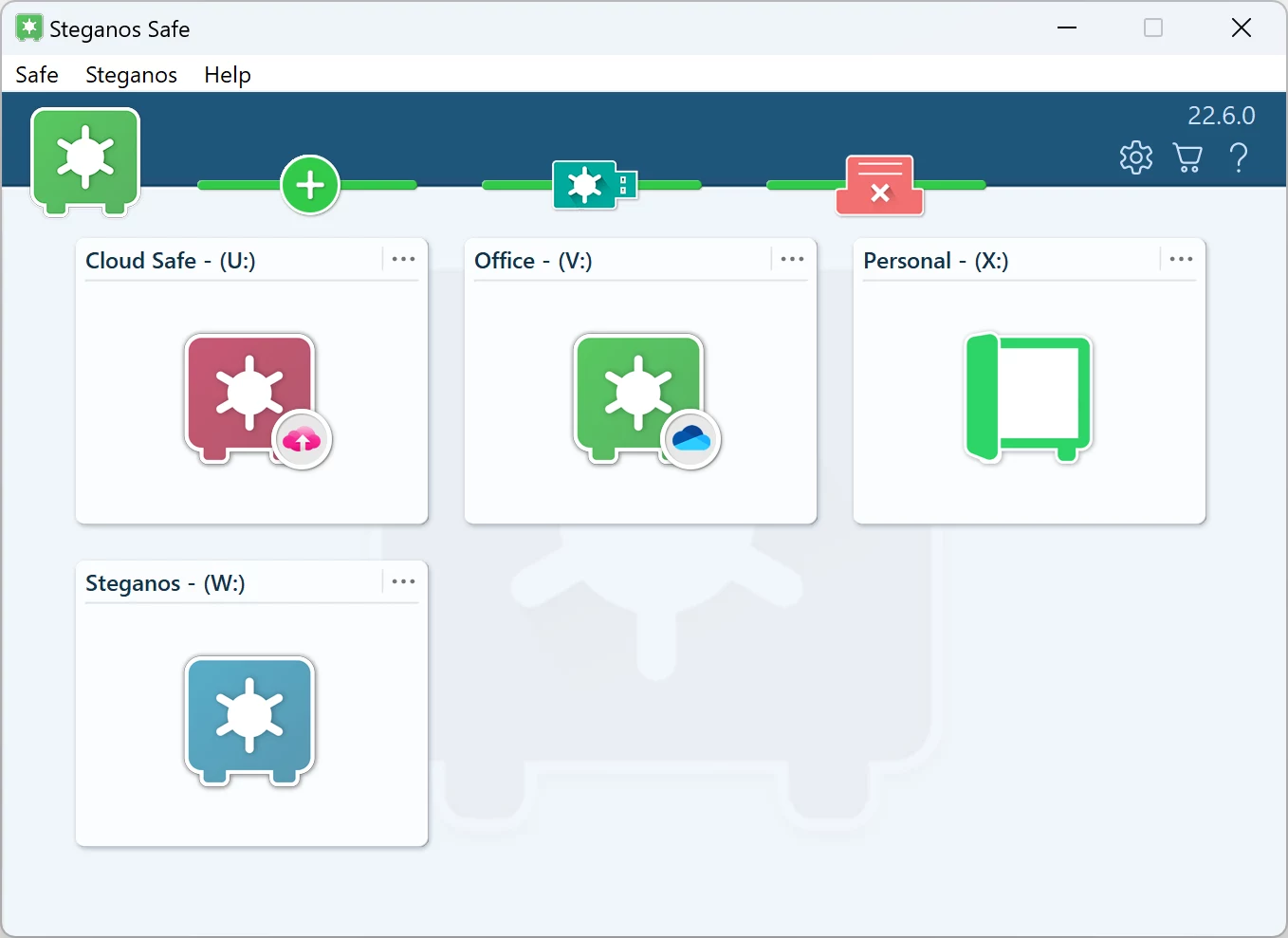
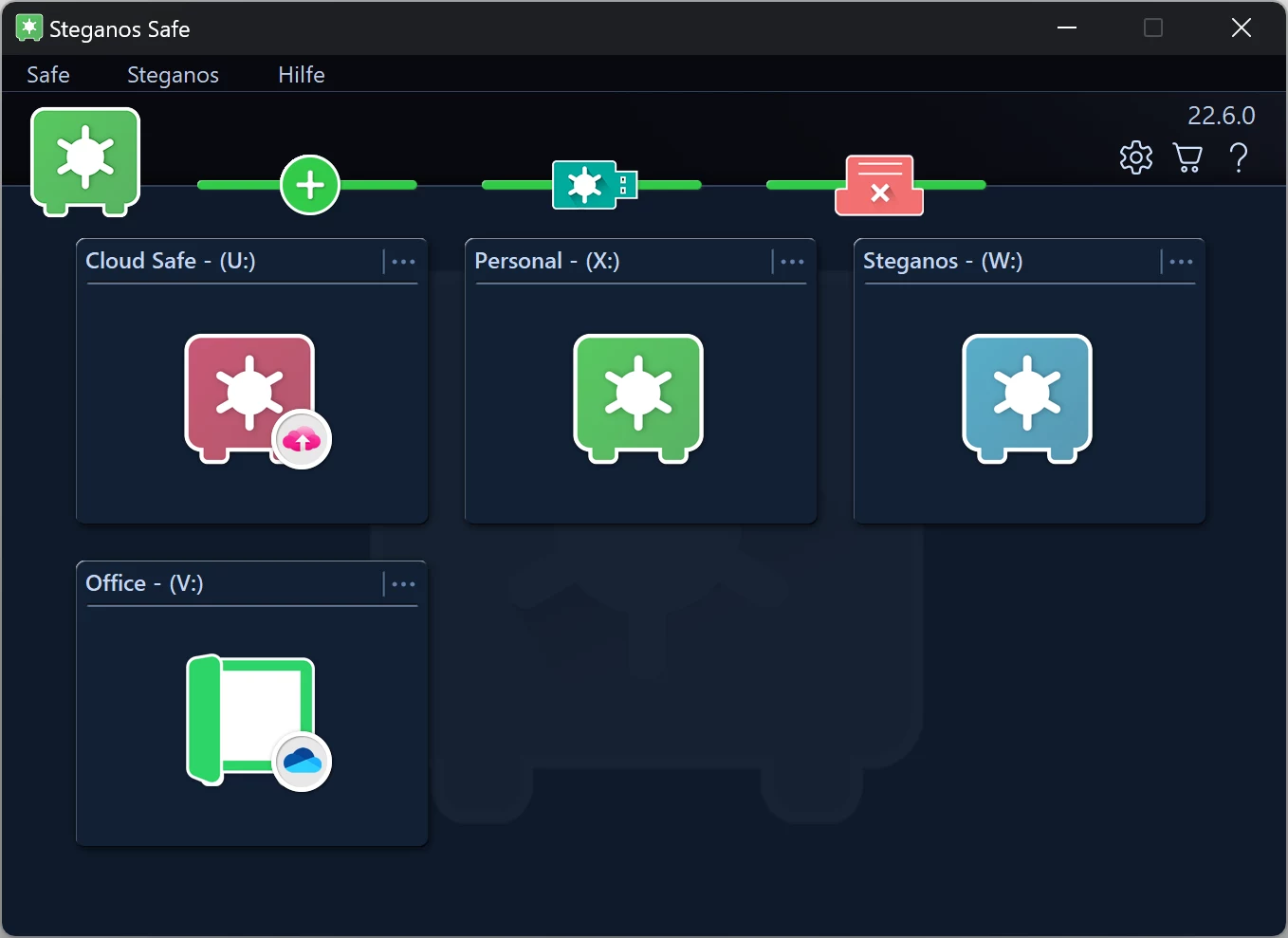

 Steganos®Data Safe
Sensitive files in an encrypted vault – on your PC and in the cloud.
- ✓Encrypted safes at the touch of a button
- ✓256-bit AES encryption
- ✓For cloud folders and USB sticks too
- ✓Delete files securely and irrecoverably
- ✓30 days unrestricted, no subscription
More Tips & Hints
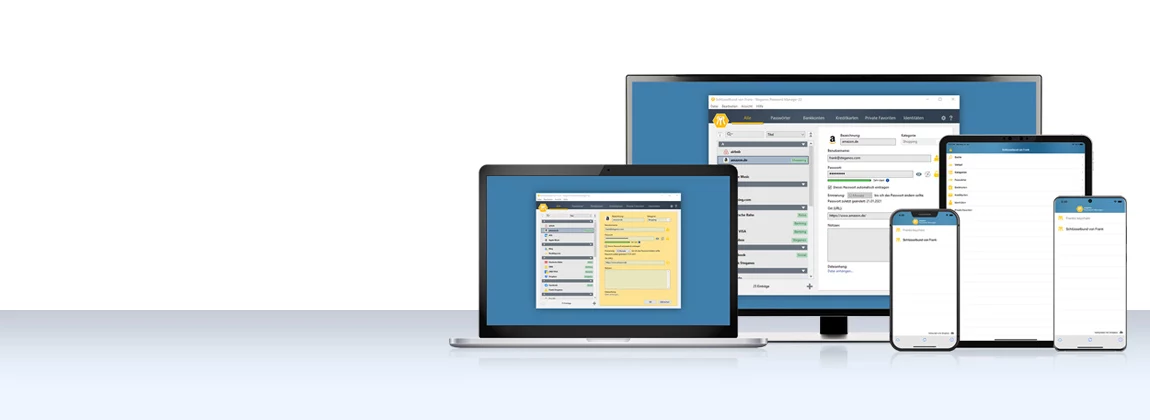
How to use the Password Manager on iOS and Android devices
Step by step: install the app, synchronise your keychain via the cloud and have your passwords at hand on the go as well.
Read on →
How a VPN can protect your smartphone and increases security and browsing comfort
Your smartphone holds your accounts, photos and messages. What a VPN actually secures there – and where it additionally increases browsing comfort.
Read on →
How to save money with VPN when shopping, booking flights and vacations online
Prices often depend on your location. How to check that, what to watch out for and why security is the real gain.
Read on →