
 Čeština
  Dansk
Dansk  Deutsch
  English
  English (US)
  Español
  Français
  Italiano
  Magyar
  Nederlands
  Norsk
Norsk  Polski
  Português
  Português (BR)
  Română
  Suomi
Suomi  Svenska
  Tiếng Việt
  Türkçe
  Ελληνικά
  Български
  Русский
  Українська
  ไทย
ไทย  日本語
日本語  한국어
한국어 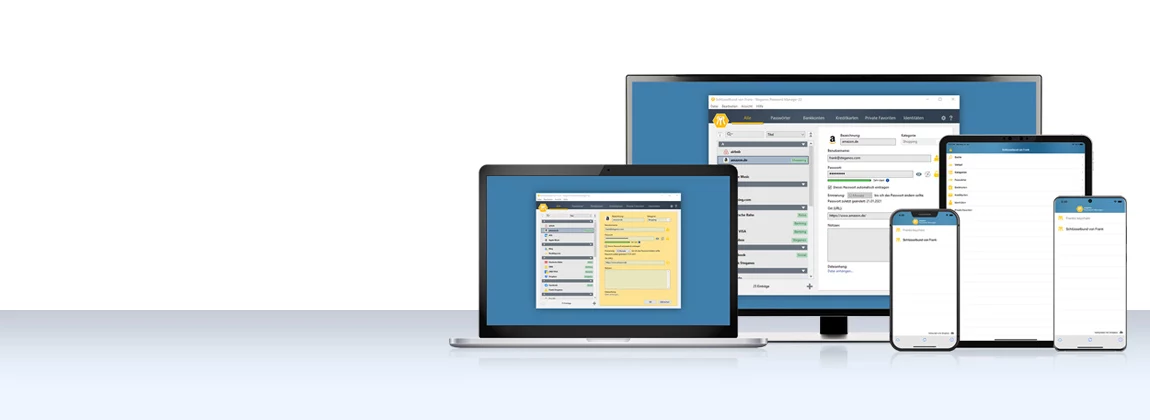
How to use the
Password Manager
on iOS and
Android devices
Step by step: install the app,
synchronise your keychain via the cloud and have your passwords at hand on the go as well.
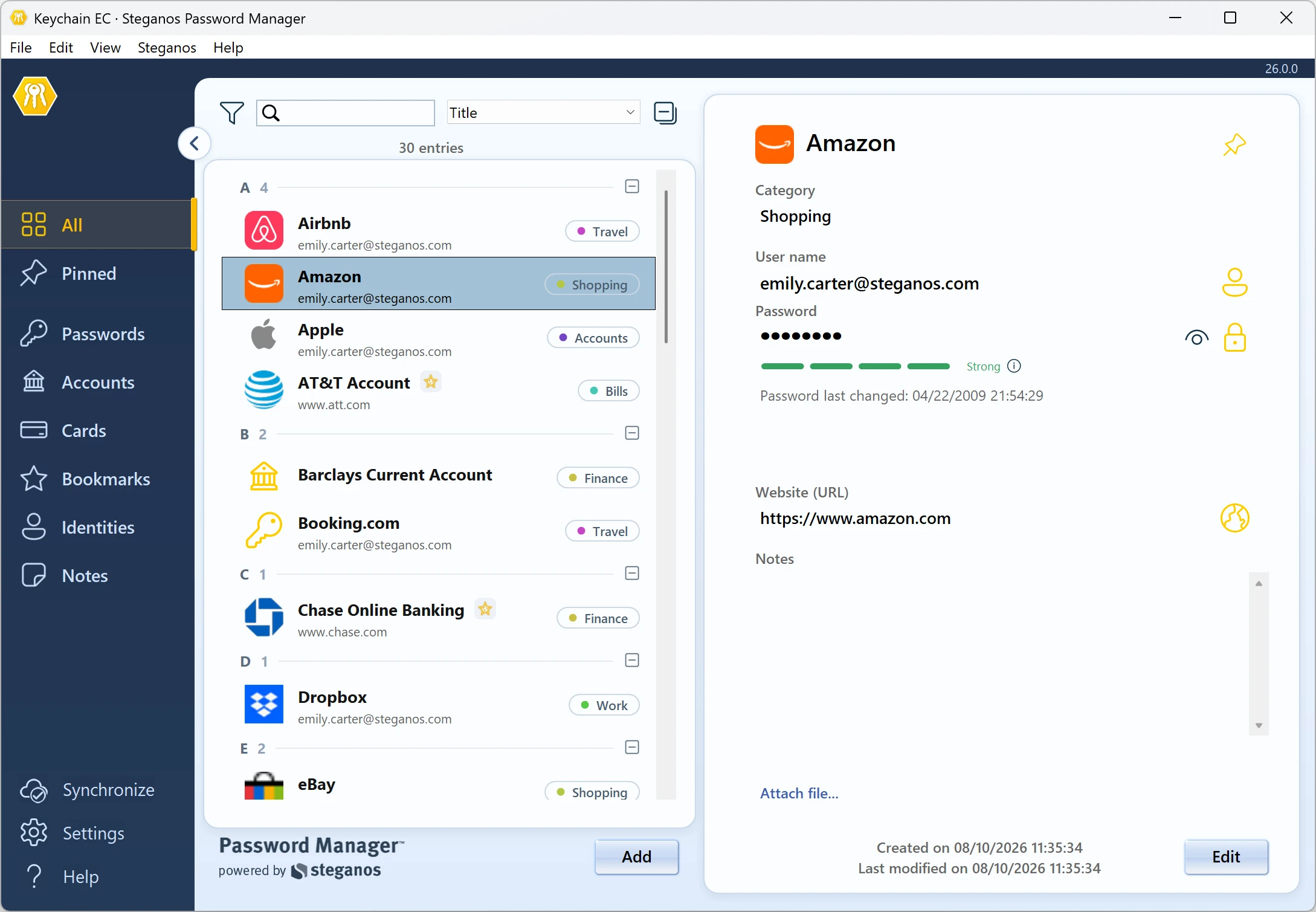
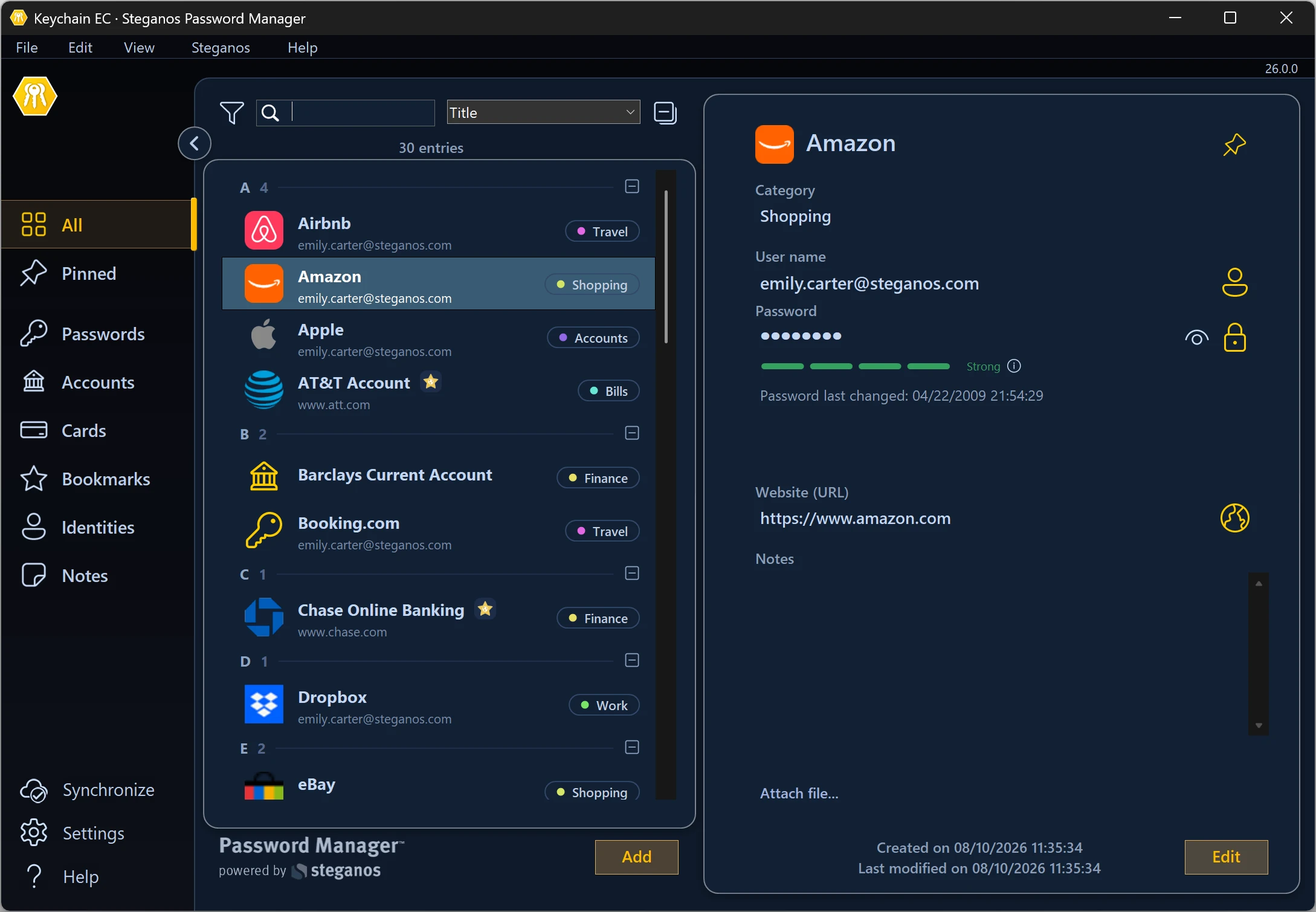
To use the Password Manager on the go, first install the app "Steganos Password Manager 26" in the Google Play Store or Apple App Store.
Launch the app. To be able to use your keychain on the go, you first need to synchronise it with a cloud storage. Once that's done, tap the cloud icon in the bottom left of the app, select the provider you're using, and follow the login process. Be sure to log in with the account you used on the PC to sync your keychain.
Once your app is connected to your cloud storage, you can now download your keychain by tapping it in the list. After entering your password, your passwords will then be available to you in the app as usual.
Password Manager for Android:


Password Manager for iOS:


If you want to use the autofill function on your Android device, you must first set up the Password Manager as a source for it.
To do this, please first open the settings of your device, then select "Steganos Password Manager" in "Passwords and accounts" as "Service for autofill".
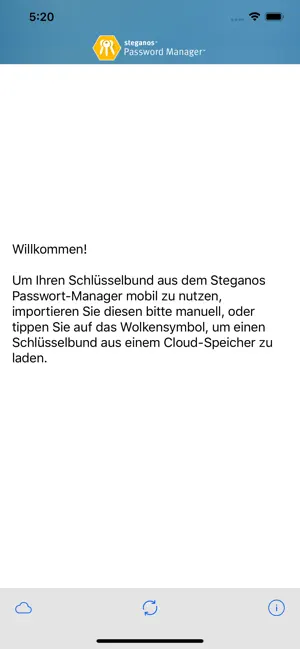
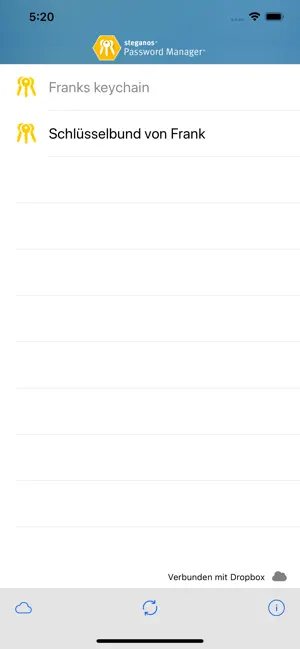
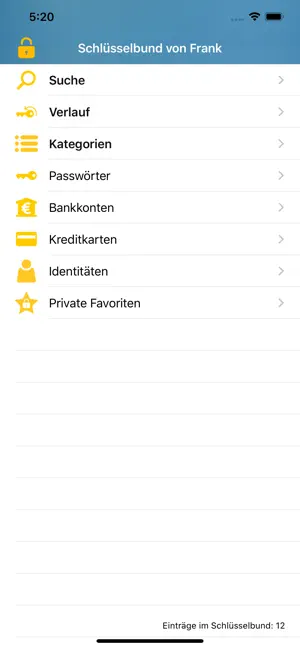
Now the passwords from your keychain are available to you via Android's autofill function and should be available for selection in corresponding input fields in apps and browsers. Sometimes it is necessary to hold down your finger on an input field for a moment for the option to pop up.
If you want to use the autofill feature on your iOS device, you first need to set up the Password Manager as a source for it.
To do this, please first open the settings of your device, then select "Steganos Password Manager" in "Passwords" as "Autofill".
Now the passwords from your keychain are available to you via the autofill function of iOS and should be available for selection in corresponding input fields in apps and browsers.
 Steganos®Password Manager
A strong password is the start. Remembering all of them is the real task.
- ✓All your passwords safe in one place
- ✓Automatic filling in browsers and apps
- ✓Access from PC, smartphone and tablet
- ✓256-bit AES encryption
- ✓30 days unrestricted, no subscription
More Tips & Hints

How a VPN can protect your smartphone and increases security and browsing comfort
Your smartphone holds your accounts, photos and messages. What a VPN actually secures there – and where it additionally increases browsing comfort.
Read on →
How to save money with VPN when shopping, booking flights and vacations online
Prices often depend on your location. How to check that, what to watch out for and why security is the real gain.
Read on →
How to bypass censorship on the Internet with a VPN
An encrypted tunnel to a server abroad – what that achieves against censorship and regional blocks, and where the limits are.
Read on →